Best Switch Controller: How to Pick the Right One
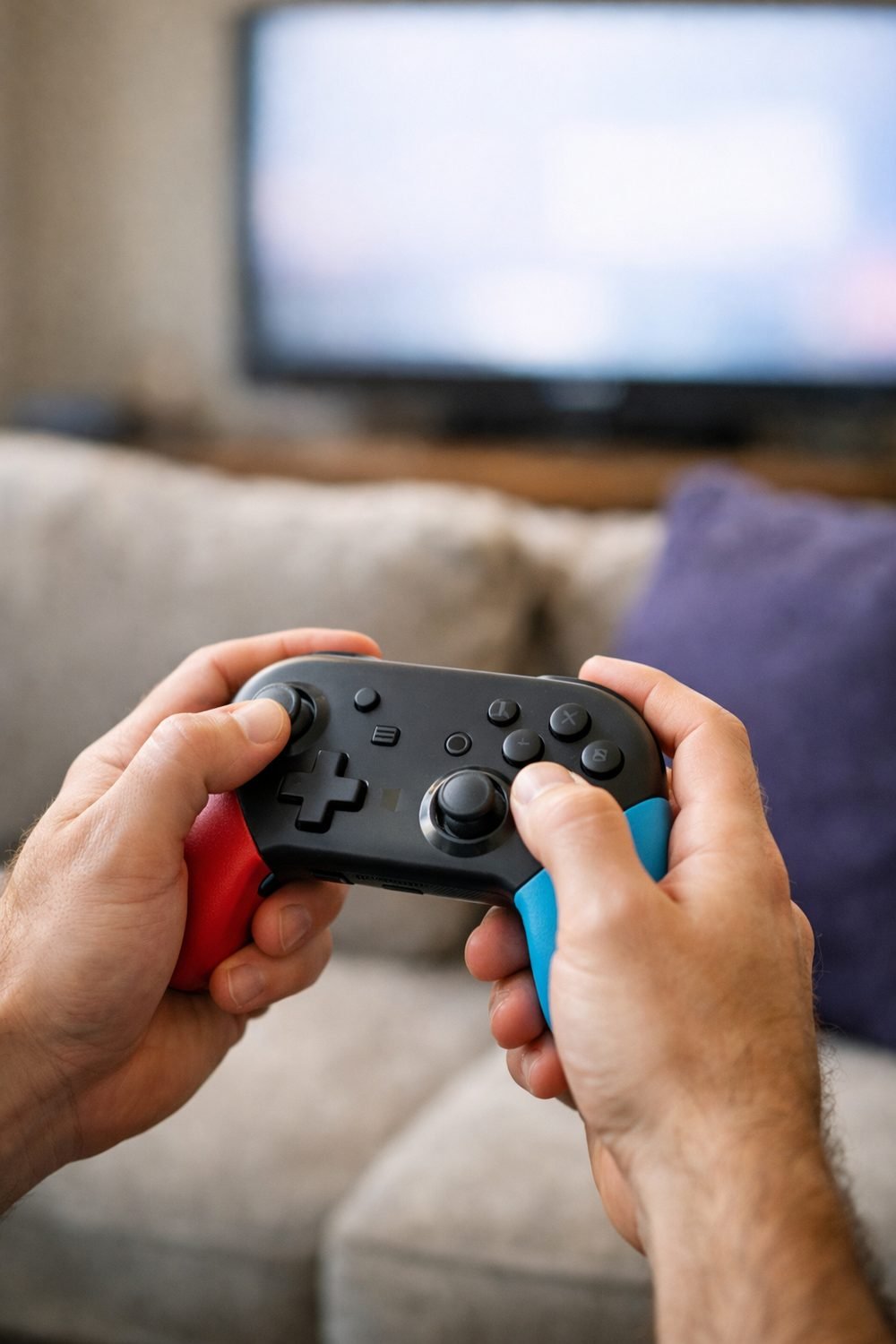
A couple were great. One felt like holding a bar of soap. Another had a "turbo" button I pressed by accident in the middle of a boss fight and never forgave.
Here's the thing many people learn the slow way: the best switch controller isn't the one with the most features. It's the one that fits your hands, works with the games you actually play, and doesn't make you mad after an hour. This guide walks you through picking one step by step, so you can skip the soap bar.
Short on time? Our top picks: Nintendo Switch Pro Controller, Nintendo Joy-Con, 8BitDo Pro 2 and PowerA Enhanced Wireless Controller. See all picks
What you need
You don't need much. Grab these before you start shopping:
- A list of the games you play most (even three or four titles helps)
- Your Switch model: original, Lite, or OLED
- A rough idea of where you play: couch, desk, bed, or on the go
- A budget you're happy with
- A few minutes to read product pages properly, including the small print
If you can, also borrow a friend's controller for ten minutes. Holding one in real life tells you more than any photo.
Step 1: Think about how and what you play on your Switch console
Start with your habits, not the store shelf. Open your Switch and look at your recently played list. That's your real gaming life, not the one you imagine.
If it's mostly platformers and adventure games, you want a comfy d-pad and good analog sticks. Fighting games? The d-pad matters even more. Shooters and racing games lean on the triggers and sticks. Party games with family might mean you need several cheaper controllers instead of one fancy one.
Also think about session length. A controller that feels fine for twenty minutes can start to hurt your hands after two hours. If you play long sessions, comfort beats almost everything else on this list.
Tip: Write down your top three games next to what each one needs most (sticks, d-pad, triggers). It takes two minutes and saves you from buying a controller built for someone else's games.
Step 2: Decide between wired and wireless
This one sounds simple, and mostly it is. But there are a few things people miss.
A wireless switch controller is what most people want for couch play. No cable across the living room floor, no tripping the dog. They connect over Bluetooth or a small USB dongle, depending on the model. The trade-off is that you have to keep them charged.
Wired controllers plug into the dock with a USB cable. You never worry about battery, and they're often cheaper. It helps to keep one wired controller at your desk setup for exactly that reason. It's always ready. The downside is obvious: you're tethered, and if you play in handheld mode or on a Switch Lite, a wired controller isn't very practical.
Some controllers do both. You can play wired while it charges, then unplug. That's my favorite setup, honestly, because a dead battery doesn't end your night.
Tip: If you play on a Switch Lite, read the product page closely. Not every controller works the same way with the Lite, and wired ones may need an adapter. Check the seller's details before you buy.
Step 3: Check the battery details and how you power a Switch controller
For wireless controllers, look at two things: how long the battery is listed to last, and how you charge it.
The listed hours are a starting point, not a promise. Features like rumble and lights usually drain the battery faster, so your real number may be lower. Treat the listed time as a best case and plan around that.
Charging matters just as much. Some controllers charge with a USB-C cable, which is handy because you probably already have one lying around. Others use older cables or AA batteries. AA batteries aren't bad, by the way. You can swap them in seconds and keep playing. You just have to keep spares around, and rechargeable ones are worth it if you go that route.
Also check if the battery can be replaced. Many built-in batteries can't, which means the controller's life is tied to the battery's life.
Tip: Look for reviews that mention battery life after a few months, not just the first week. Batteries change over time, and long-term owners tend to be the most honest.
Step 4: Look closely at the layout and feel of a Switch controller
Nintendo's button layout is a little different from other consoles. The A and B buttons are swapped compared to Xbox, for example. A good Switch controller should match the Switch layout so the on-screen prompts make sense. If a game says "press A," you don't want to be guessing.
Then there's shape. Some controllers copy the Switch Pro Controller style, with chunky grips. Some are small and retro. Some are basically a big Switch Joy-Con controller. None of these is "best." My hands are on the bigger side, so tiny retro pads cramp me up. Kids and players with smaller hands often like them because they fit more comfortably.
Pay attention to stick placement too. Some controllers put both sticks level, like PlayStation. Others offset them, like Xbox and the Pro Controller. If you've played on one style for years, switching can feel odd for a while.
And the d-pad. To be blunt: a mushy d-pad can ruin 2D games. If you play a lot of retro titles, read reviews that specifically mention the d-pad.
Tip: If you can't try one in person, compare the listed size and weight to a controller you already own. Lay yours on the table and picture it a little bigger or smaller. It's not perfect, but it helps.
Quick side note: if you're a tabletop fan as well as a gamer, our free Blank Board Game Board and 10 Card Templates is yours when you join the email list.
Step 5: Decide if extra buttons are worth it
This is where controllers get flashy. Turbo buttons, back paddles, programmable buttons, motion controls, rumble, NFC for amiibo, a screenshot button, lights. Some of it is useful. Some of it is marketing.
Here's how I sort it:
- Motion controls: Worth having if you play games that use aiming by tilting, or certain party games. Many cheaper controllers skip this, so check.
- Rumble: Nice, but cheaper controllers often have basic rumble instead of the finer "HD" style. Some games feel a little flatter without it. I can live with that.
- Amiibo support (NFC): Only matters if you use amiibo. If you don't, skip it and don't pay extra.
- Back paddles: Great for shooters or games where you'd like to keep your thumbs on the sticks. I didn't think I'd use them. Now I do, but only in a few games.
- Turbo: Overrated for most people, in my opinion. Handy in a few old-school shooters. Annoying when you hit it by mistake.
- RGB and LED lights: Pure looks, like an RGB controller or LED controller. Fun if you like them. They can eat battery.
The honest truth? Most people use the standard buttons 99 percent of the time. Pay for extras you'll actually touch, and ignore the rest.
Tip: Check if the extra buttons can be turned off. A paddle that can't be disabled is a paddle you'll eventually press by accident.
Step 6: Confirm compatibility
Never assume. Read the seller's compatibility list and match it to your exact Switch model.
Things to look for:
- Which Switch models are listed (original, Lite, OLED)
- Whether it works in docked mode, tabletop mode, handheld mode, or only some
- If it can wake the Switch from sleep (many third-party controllers can't, which is a small but real annoyance)
- Whether it needs a firmware update and how you'd do that
- If it works with other devices too, like a PC, in case that matters to you
Some controllers also have trouble after a Switch system update until the maker releases a fix. It doesn't happen often, but it's one reason I lean toward brands that post updates and support info on their own site.
Tip: Search the controller's name plus "wake" or "update" before buying. Owners usually mention these problems quickly if they exist.
Step 7: Read the return terms before you pay
This is the boring step, and the one people skip most often. Don't skip it.
Controllers are personal. One that looks perfect online can feel wrong in your hands. So before you buy, check how many days you have to return it, whether it has to be unopened, who pays return shipping, and what the warranty covers. Stick drift (when the stick moves on its own) is a common complaint with lots of controllers, so it's good to know if that's covered.
Keep the box and receipt for at least the return window. Putting it on a shelf in the closet works well, and it can save you if something goes wrong.
Tip: Play with a new controller a lot in the first few days, in different games. If something's off, you want to notice while you can still send it back.
Troubleshooting common problems
The controller won't pair
First, check that controller pairing is turned on in your Switch settings for wired Pro Controller connections if you're using a cable. For wireless, go to the Controllers menu and choose "Change Grip/Order," then put the controller in pairing mode. The manual will say which buttons to hold. If it still won't connect, charge it fully and try again. Low battery causes more pairing trouble than you'd think.
The stick drifts
Try the stick calibration tool in the Switch system settings first. Sometimes that's all it takes. If the drift keeps coming back, contact the seller or maker and ask about the warranty. Don't open the controller yourself unless you're comfortable with it, since that may void the warranty.
Buttons feel laggy
Move closer to the console and clear anything sitting between you, like a metal TV stand or other wireless gear. If you're on a wired setup, try a different cable. A cheap or worn cable can cause weird issues.
Motion controls aren't working
Check that the controller actually supports motion. Then look for a motion calibration option in the Switch settings. Some games also have their own motion toggle buried in the options menu.
Our top picks
Here are some well-known Switch controllers worth a look as you work through the steps above. Match each one to your games, your hands, and your Switch model.
Nintendo Switch Pro Controller
This is the official option, and it suits people who play long sessions and want a familiar layout. Check whether it fits your budget, since official gear can cost more than third-party choices.
Nintendo Joy-Con
Joy-Con are the controllers many people already own, and they suit casual play and shared game nights. Check the condition of your sticks before buying more, and look into replacement options if drift is the problem.
8BitDo Pro 2
A popular third-party pad for people who like a Pro Controller style shape and want extra customization. Check the compatibility list for your Switch model and whether you are comfortable with its software for setup.
PowerA Enhanced Wireless Controller
PowerA makes licensed Switch controllers aimed at people who want a lower cost alternative to the official pad. Check which features are included, such as motion controls and rumble type, before you buy.
PDP Faceoff Deluxe+ Audio Wired Controller
A wired style pick that suits desk setups where you never want to think about battery. Check the cable length and how it connects to your dock or setup.
Hori Split Pad Pro
This one is built for handheld play, so it suits people who mostly play with the Switch in portable mode and want bigger grips. Check that it works with your Switch model, since it is not meant for docked play.
GuliKit KingKong 2 Pro
A third-party option known for being drift-resistant in its stick design, which may appeal if stick drift has bitten you before. Check the support details and return terms before buying.
Check current plans and prices on each brand's own site before you decide.
FAQ
Is the official Switch Pro Controller worth it?
For a lot of people, yes, especially if you play long sessions and want every feature working. But it's not the only good choice. If you don't need amiibo support or fancy rumble, a well-reviewed third-party controller can feel just as nice for less.
Can I use a controller from another console?
Some can connect, and some can't, and it often depends on adapters or updates. It's hit or miss. Check the controller maker's page or the adapter's compatibility list before you count on it.
How many controllers do I need for party games?
Count the people who usually play at once. Nintendo Joy-Con can split into two controllers, which helps. If you host game nights often, a couple of budget controllers might serve you better than one premium one. Our Game Night and Hobby Planner and Checklist Bundle, below this post, helps you keep track of who's coming and what gear you need.
Do I need a headset too?
Not for most Switch games, but it's nice for online play or late nights when the house is quiet. If you're thinking about one, the Gaming Headsets Buyer's Guide and Comparison Sheets below this post might save you some guessing.
Your next step
Go back to that short list of your favorite games and run through the steps one at a time. You'll probably land on two or three controllers that make sense, and the return terms can help you pick between them. While you're here, grab the free Blank Board Game Board and 10 Card Templates by joining the email list, then take a look at the guides and planners below this post if they fit what you're working on. Happy playing, and may your d-pad never be mushy.
Printables and tools that can help
Gaming Headsets Buyer's Guide and Comparison Sheets
A printable guide and comparison sheets to write down what matters to you before you look at any seller...
See detailsGame Night and Hobby Planner and Checklist Bundle
A printable bundle with a 30-day goal page, weekly planner and checklists for gamers and...
See details